


New Year, Same Tech: Your Digital Reset Guide
Updated: 29th December, 2025
The start of a new year is the perfect time to give your devices a fresh start. A digital reset helps your tech run faster, keeps your data secure, and ensures last year’s memories are safely backed up.
Whether you use smartphones, laptops, smartwatches, or tablets, this guide will walk you through practical steps to declutter, optimise, and protect your digital life.
1. Declutter your devices
Digital clutter doesn’t just take up space—it impacts your device’s speed, efficiency, and overall lifespan. When storage is nearly full, systems struggle to process updates, apps load more slowly, and performance suffers.
By organising your digital space now, you free up valuable resources and reduce strain on your device. Think of it as preventive maintenance—your tech will run smoother, last longer, and give you peace of mind throughout the year.

Delete unused apps
Unused apps consume space and sometimes run background processes. Here’s how to remove them:
- iPhone/iPad (iOS):
- Open Settings > General > iPhone Storage.
- Scroll through the list of apps.
- Tap any app you don’t use and select Delete App or Offload App (keeps data but removes the app).
- Android:
- Open Settings > Apps.
- Tap the app you want to remove.
- Select Uninstall.
- Windows PC:
- Go to Settings > Apps > Installed Apps.
- Click the app and select Uninstall.
- Mac:
- Open Finder > Applications.
- Drag the app to the Trash, then empty the Trash.
Clear cache and temporary files
Caches and temporary files can hog space and slow performance. Here’s how to manage them:
- iOS: Restarting clears most temporary files. For Safari cache, go to Settings > Safari > Clear History and Website Data.
- Android:
- Go to Settings > Storage > Cached Data.
- Tap Clear Cache.
- Windows:
- Search for Disk Cleanup in the Start menu.
- Select the drive and tick Temporary Files.
- Click OK.
- Mac:
- Open Finder > Go > Go to Folder.
- Type ~/Library/Caches and delete unnecessary files.
2. Free up storage space
Running out of storage can slow your device and limit what you can do. One of the easiest ways to free up space is by moving large files—especially photos and videos—from your device to the cloud or an external drive.
This not only protects your memories in a secure location but also keeps your device performing at its best. With extra space available, you’ll have room to capture new moments without worrying about storage warnings or sluggish performance.
Move photos and videos to the cloud
- Google Photos (Android/iOS):
- Install Google Photos.
- Sign in and enable Backup & Sync.
- iCloud (iOS):
- Go to Settings > [Your Name] > iCloud > Photos.
- Turn on iCloud Photos.
- Windows/Mac: Use OneDrive or Dropbox for easy syncing.
Use external storage
- Plug in an external SSD or USB drive.
- Drag and drop large files or use backup software like Time Machine (Mac) or File History (Windows).
3. Back up your data
Backing up your data is one of the most important steps you can take to protect your digital life. Devices can fail unexpectedly, get lost, or be damaged, and without a backup, years of photos, documents, and personal files can disappear in an instant.
A reliable backup ensures that even if the worst happens, you can restore your files quickly and easily. Beyond peace of mind, backups also make upgrading to a new device seamless, since all your data is ready to transfer.
Enable automatic backups
- iPhone/iPad:
- Go to Settings > [Your Name] > iCloud > iCloud Backup.
- Turn on iCloud Backup.
- Android:
- Go to Settings > System > Backup.
- Enable Backup to Google Drive.
- Windows:
- Go to Settings > Update & Security > Backup.
- Set up File History.
- Mac:
- Open System Settings > Time Machine.
- Select a backup disk and turn on automatic backups.
Verify backups
Check that your backups are complete and accessible. A backup that doesn’t restore is useless—test by restoring a small file.
4. Update and optimise
Keeping your device updated is essential for both performance and security. Updates often include bug fixes and optimisations that make your device run faster and more efficiently, reducing crashes and improving battery life.
Regular updates also ensure compatibility with new apps and features so that you can take advantage of the latest technology without issues. In short, updating your device isn’t just about staying current—it’s about safeguarding your digital life and ensuring your tech works at its best for years to come.
Install OS updates
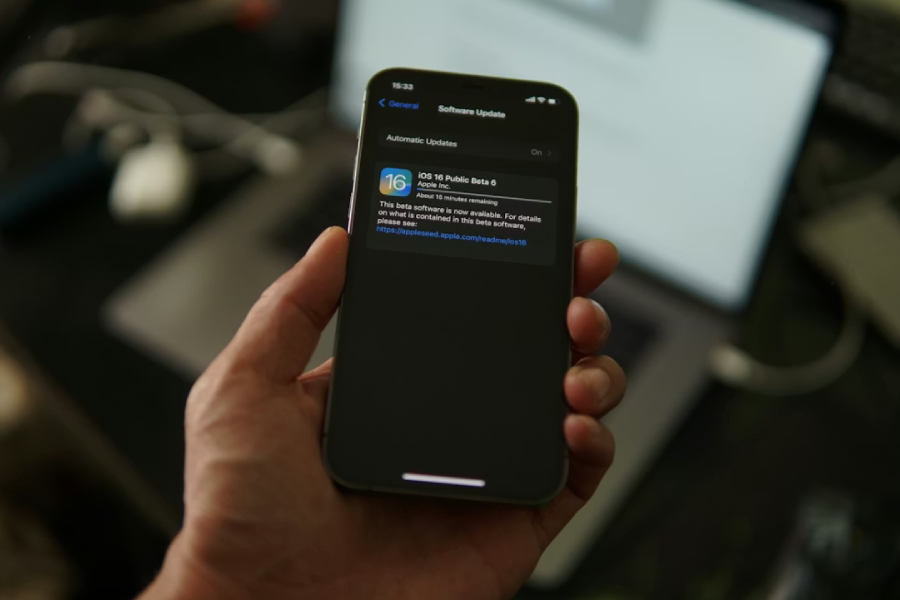
- iOS/Android: Go to Settings > Software Update and install the latest version.
- Windows: Go to Settings > Update & Security > Windows Update.
- Mac: Go to System Settings > Software Update.
Update apps
Enable auto-updates in your app store settings to keep apps secure and efficient.
Battery health check
- iPhone: Go to Settings > Battery > Battery Health.
- Android: Check under Settings > Battery or use the manufacturer’s app.
- Replace ageing batteries to extend device life.
5. Strengthen security
Starting the year with strong security practices is one of the smartest moves you can make for your digital life.
By reviewing and updating your security measures—such as changing passwords, enabling multi-factor authentication, and checking app permissions—you significantly reduce the risk of unauthorised access.
A few simple steps now can prevent major headaches later and keep your devices safe throughout the year.

Change passwords and enable MFA
Protect your accounts by updating your passwords regularly and enabling multi-factor authentication (MFA). These simple steps add an extra layer of security, making it much harder for attackers to access your devices and data.
Review app permissions
- iOS: Go to Settings > Privacy & Security.
- Android: Go to Settings > Privacy > Permission Manager. Remove unnecessary access to location, contacts, and camera.
Install/recheck antivirus protection
Please make sure your PC and Android devices have updated antivirus protection.
6. Smartwatch and IoT devices
Your smartwatch or fitness tracker stores valuable health and activity data. Backing it up ensures you don’t lose progress or personal records when switching devices or after a reset.

Sync and backup health data
- Apple Watch: Open the Watch app on your iPhone. Health data automatically syncs to Apple Health and iCloud if enabled. To check, go to Settings > [Your Name] > iCloud > Health and make sure it’s turned on.
- Wear OS / Android: Open Google Fit, sign in with your Google account, and confirm Sync is enabled under Settings > Connected Apps.
Firmware updates
Firmware updates improve performance and often include critical security patches for wearables and IoT devices.
- Apple Watch: Open the Watch app > General > Software Update. If an update is available, follow the on-screen instructions.
- Wear OS / Android: Open the Wear OS app, go to Settings > System > Updates, and install any available updates.
- Smart home devices: Use the manufacturer’s app (e.g., Alexa, Google Home) and check for updates under Device Settings.
Remove old pairings
Old Bluetooth pairings can clutter your device and pose security risks.
- iPhone/iPad: Go to Settings > Bluetooth, find the device you no longer use, and tap Forget This Device.
- Android: Go to Settings > Connected Devices > Bluetooth, select the device, and tap Unpair.
- Smartwatch: Open the companion app (e.g., Watch app or Wear OS), select the device, and choose Unpair or Remove.
Final thoughts
A digital reset isn’t just about freeing up space—it’s about peace of mind. By decluttering, backing up, and securing your devices, you’ll start the year with tech that’s faster, safer, and ready for everything ahead.